
For creating tabs in Tkinter, you’ll have to use tabControl, Notebook & Frame.
I will show you how to create tabs like the one shown below.
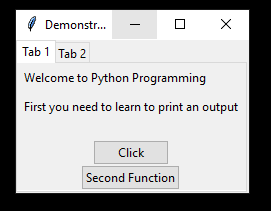

I have used the following code to create the tabs.
|
1 2 3 4 5 6 7 8 9 10 11 12 13 14 15 16 17 18 19 20 21 22 23 24 25 26 27 28 29 30 31 32 33 34 35 36 37 38 39 40 41 42 43 44 45 46 47 48 49 50 51 52 53 54 55 56 57 58 59 60 61 62 63 64 65 |
from tkinter import * from tkinter.ttk import * import time from threading import * root = Tk() root.title("Demonstrating Tabs in Tkinter") tabControl = Notebook(root) tab1 = Frame(tabControl) tab2 = Frame(tabControl) tabControl.add(tab1, text='Tab 1') tabControl.add(tab2, text = 'Tab 2') tabControl.pack(expand = 1, fill="both") text = "You will need to learn a lot of things.\nYou can being with Linear Algebra.\nHowerver, that alone will not be enough." label_1 = Label(tab1, text="Welcome to Python Programming") label_1.grid(row=0,column=0, padx=5,pady=5, sticky="nw") label_2 = Label(tab1, text="First you need to learn to print an output") label_2.grid(row=1,column=0, padx=5,pady=5) label_1 = Label(tab2, text="Welcome to the world of Quants") label_1.grid(row=0,column=0, padx=5,pady=5,sticky="nw") label_2 = Label(tab2, text=text) label_2.grid(row=1,column=0, padx=5,pady=5,sticky="nw") #sticky can take the following values : "n", "s", "e", "w", "ne", "nw", "se", "sw" func_1_display = Label(tab1) func_1_display.grid(row=3, column=0) func_2_display = Label(tab2) func_2_display.grid(row=3, column=0) def func_1(): for x in range(20): func_1_display.config(text=f"I am {x}") time.sleep(0.5) def func_2(): for x in range(20): func_2_display.config(text=f"I belong to {x}th grade") time.sleep(0.5) def threading_func_2(): t_func_2=Thread(target=func_2) t_func_2.start() def threading_func_1(): t_func_1=Thread(target=func_1) t_func_1.start() func_1_button = Button(tab1, text="Click", command=threading_func_1) func_1_button.grid(row=4, column=0) func_2_button = Button(tab1, text="Second Function", command=threading_func_2) func_2_button.grid(row=5, column=0) mainloop() |
I have added two function buttons in the first tab (tab1). If you click these buttons, two functions will be triggered. One function will display stuff in tab1 and another function will show stuff in tab2.
I have used threading here, as you can not run any parallel codes when Tkinter is open, without using threading.
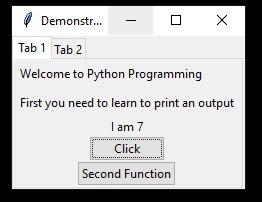
When the first button is clicked. You get this.
When the second button is clicked, you get this.
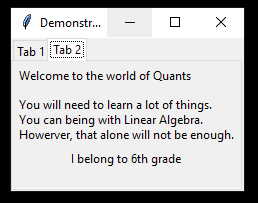
Thus, you can create multiple tabs and multiple functions on your Tkinter interface.
